Projects and source control
Use Projects to connect your code hosts and work with repositories at organization scope. Provider-specific setup lives under Settings → Integrations.
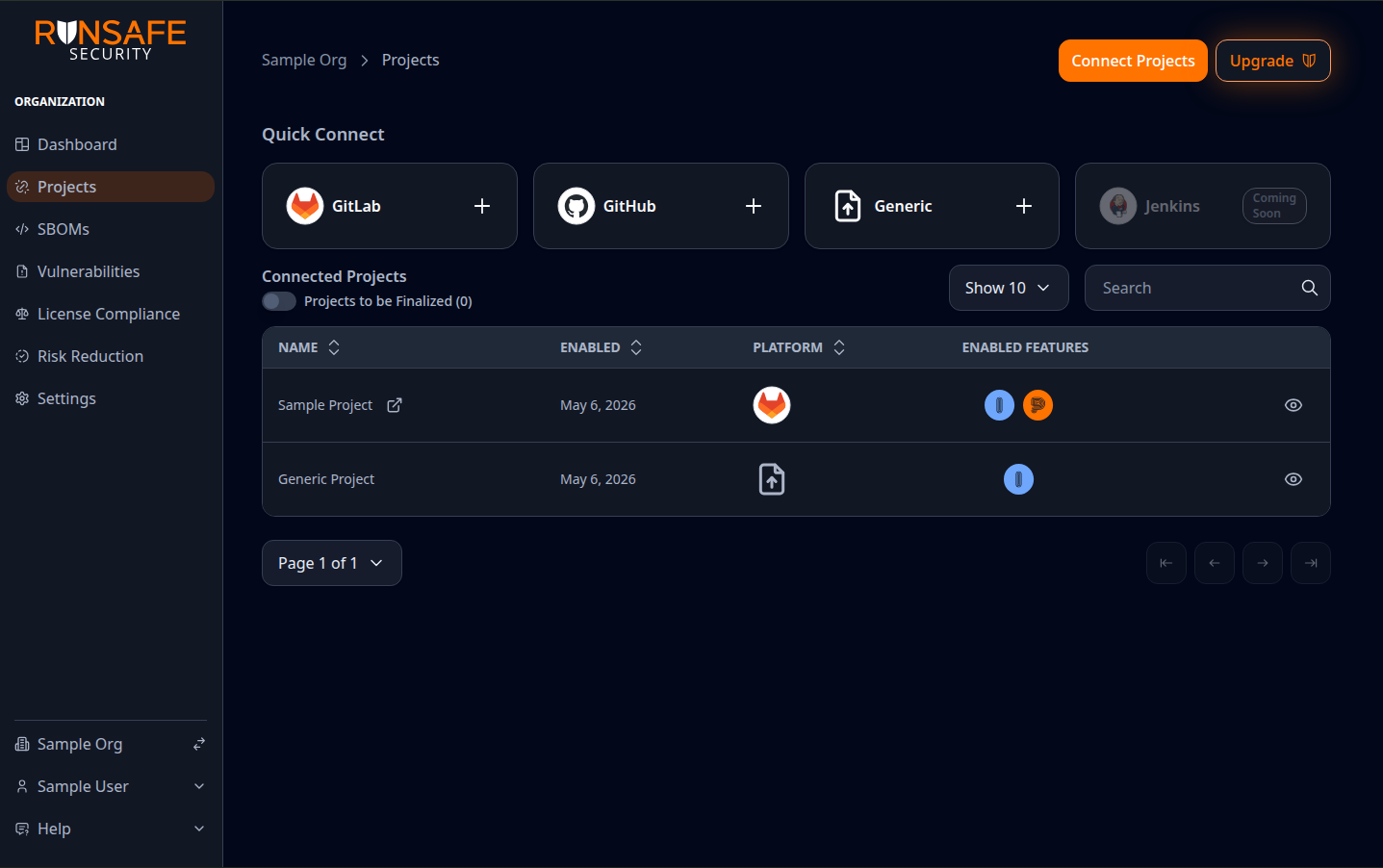
Use Connect Projects (or the Quick Connect cards) to add GitHub, GitLab or Generic; the table lists connected repositories, enabled features, and high-priority vulnerability counts.
Supported connections
The Platform supports these project types:
- GitHub — Connect repositories through the RunSafe Platform GitHub App.
- GitLab — Connect repositories through GitLab integration settings.
- Generic — Create a manually managed project when you want to use Identify and review SBOM, vulnerability, and license data without connecting to a source control provider.
Typical workflow for Git-connected Projects
- Open Projects for your organization.
- Use the connect flow to link GitHub or GitLab (OAuth, API token, or app install, depending on provider). For GitLab, an organization admin first chooses organization-wide OAuth or a shared Maintainer API token; see GitLab organization authentication.
- Choose repositories and configure options in the integration screens. For GitLab, configuration runs as a background job with a progress page; see GitLab project configuration jobs.
- Follow the Post-configuration steps.
- Open a project and select a git ref to view SBOMs, vulnerabilities, and license compliance for that ref.
Integrations vs. Projects
- Settings → Integrations — Install or update the provider integration, manage OAuth or GitHub App installation, and configure repository-level options.
- Projects — List connected work, jump into a project, and open git ref-scoped views.
Organization compliance settings provide the default policy for every project. Organization admins can override vulnerability thresholds and license policy for an individual project from that project's Settings pages. See Vulnerability compliance and License compliance policy.
Projects table vulnerability counts
The Projects table includes KEVs, Critical, and High columns so you can quickly identify projects that need vulnerability review:
- KEVs counts vulnerabilities known to be actively exploited.
- Critical and High count vulnerabilities by severity.
- For GitHub and GitLab projects, counts come from the latest complete scan on the project's default branch.
- For Generic projects, counts come from the latest complete uploaded SBOM report.
Open a project to review the underlying SBOMs, vulnerabilities, and license compliance details.
Post-configuration steps
After configuring a project there are some follow up steps which might be necessary, depending on the project type. If the changes described below are ever removed manually the RunSafe integration will break and the changes must be reintroduced either by reconfiguring the project or following the manual steps described in each section.
GitLab
Newly configured GitLab projects will by default have a merge request created which will need to be merged into the default branch to start seeing full RunSafe protections.
If configuring a C++ project there will be a necessary manual step which will be detailed as a thread in the MR. If configuring a project which includes Docker/Podman image manipulation (push/pull/build/tag) the created MR will automatically include steps necessary to integrate Docker SBOM generation.
For .NET/C# projects, the Platform checks for .NET project files such as .csproj, .fsproj, .vbproj, .sln, packages.config, or global.json and attempts to wrap GitLab CI jobs that run dotnet commands so NuGet dependency SBOMs can be generated during the pipeline.
The generated MR also includes a Finalize RunSafe .NET SBOM Integration thread. Follow those steps if the automated changes do not cover every .NET job. In each GitLab CI job that runs commands such as dotnet restore, dotnet build, dotnet test, or dotnet publish, add the RunSafe .NET setup reference before the first dotnet command and the cleanup reference after the final relevant command:
build_job:
  script:
    - !reference [.runsafe-gremlin, setup_script_dotnet]
    - dotnet build
    - !reference [.runsafe-gremlin, cleanup_script_dotnet]
If the job uses needs, include the RunSafe setup job (usually RunSafe Gremlin Setup; on-prem installs use RunSafe Gremlin Setup On-prem) in that list so the setup reference is available before the .NET job runs.
It is possible to disable the MR creation under your organization settings, which can be useful for cases like having a centralized CI template for builds.
When Identify finishes SBOM work for a GitLab pipeline commit, the Platform also posts a commit comment with links to the project-scoped SBOM reports for that git ref. If too many SBOMs were generated to list in the comment, the overflow link opens that project's SBOM list for the same ref.
GitHub
Newly configured GitHub projects use the RunSafe Platform GitHub App. After installation, the Platform creates GitHub check runs on commits for connected repositories:
- RunSafe SBOMs — Tracks SBOM generation for the commit and links back to the project-scoped Platform SBOM list and reports for that git ref.
- RunSafe License Compliance Check — Waits for the SBOM work to finish, then evaluates the project's effective license compliance policy.
- RunSafe Vulnerability Compliance Check — Waits for the SBOM work to finish, then evaluates the project's effective vulnerability thresholds.
When a project is configured, the Platform creates an issue with any manual steps necessary to finish build-time SBOM integration. Follow those steps for repositories that need build-time SBOMs from GitHub Actions, including C/C++, Docker, and .NET workflows. If the repository only needs non-buildtime SBOM scans, no additional GitHub Actions setup is required.
The RunSafe SBOMs check run updates as SBOM results finish. Re-running a GitHub workflow refreshes the build-time SBOM state for that workflow attempt so the check run reflects the latest run.
Scheduled workflows are ignored when generating non-buildtime SBOMs and check runs are not created for those workflows.
Generic projects
Generic projects are for software that you want to track in the Platform without connecting a GitHub or GitLab repository. Organization admins can create them from Settings → Integrations → Generic by entering:
- Name — The project name shown in the Platform.
- Description — Context for the project.
- URL — An optional external link, such as a project homepage or source location.
Generic projects currently support Identify workflows. Protect and Monitor setup options are disabled for Generic projects.
After a Generic project exists, you can:
- Upload CycloneDX JSON or SPDX 2.x (JSON, tag:value, or RDF/XML) SBOM files to it from the organization SBOMs page or from the project page. See Supported manual upload formats.
- Create a new Generic project as part of the organization-level Upload SBOM flow.
- Use the SBOM generator CLI with the Generic project ID.
- Review the latest uploaded SBOM data in project-level SBOM, vulnerability, and license compliance pages.
- Edit the project name, description, and URL from the project Settings page.
Related documentation
- Integrations
- Identify — C/C++ SBOMs and using the Platform vs. offline tooling